
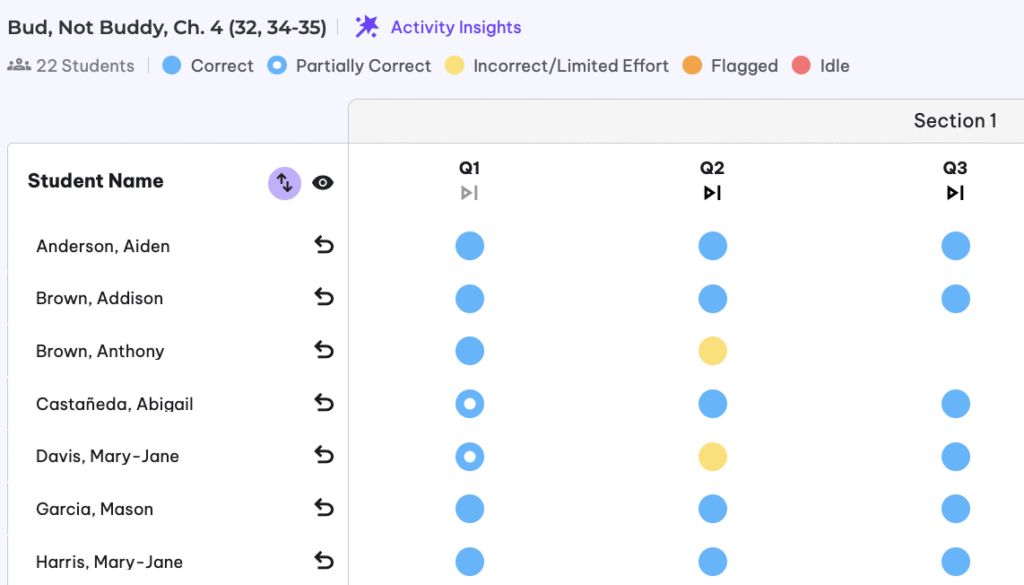
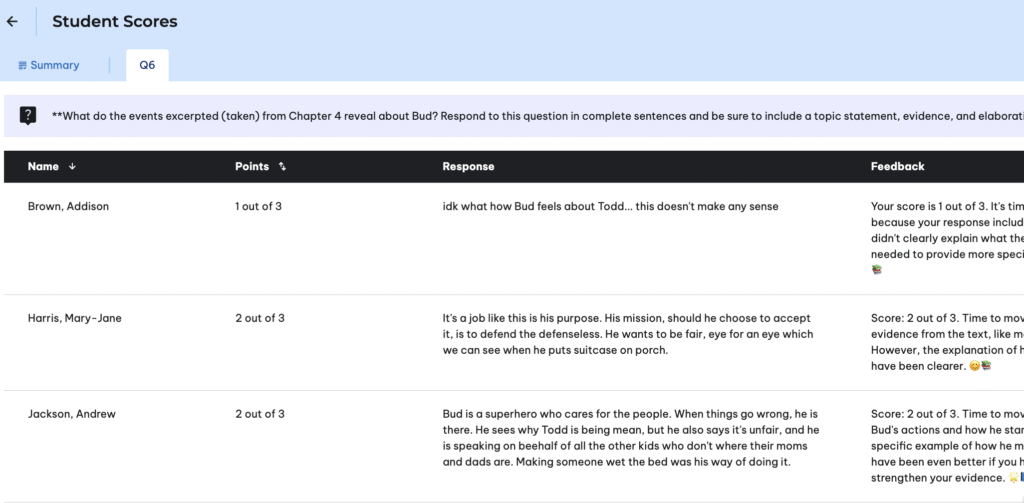
We’re excited to roll out one of our most requested features: the Student Dashboard and Score Pages now display all students as “Last Name, First Name” by default.
We hope this update makes a big difference when you’re grading or cross-referencing rosters. If you notice any student name errors, please email help@coursemojo.com or send us a message by clicking the “Feedback” button.
*The student names shown in the screenshots are sample student names only
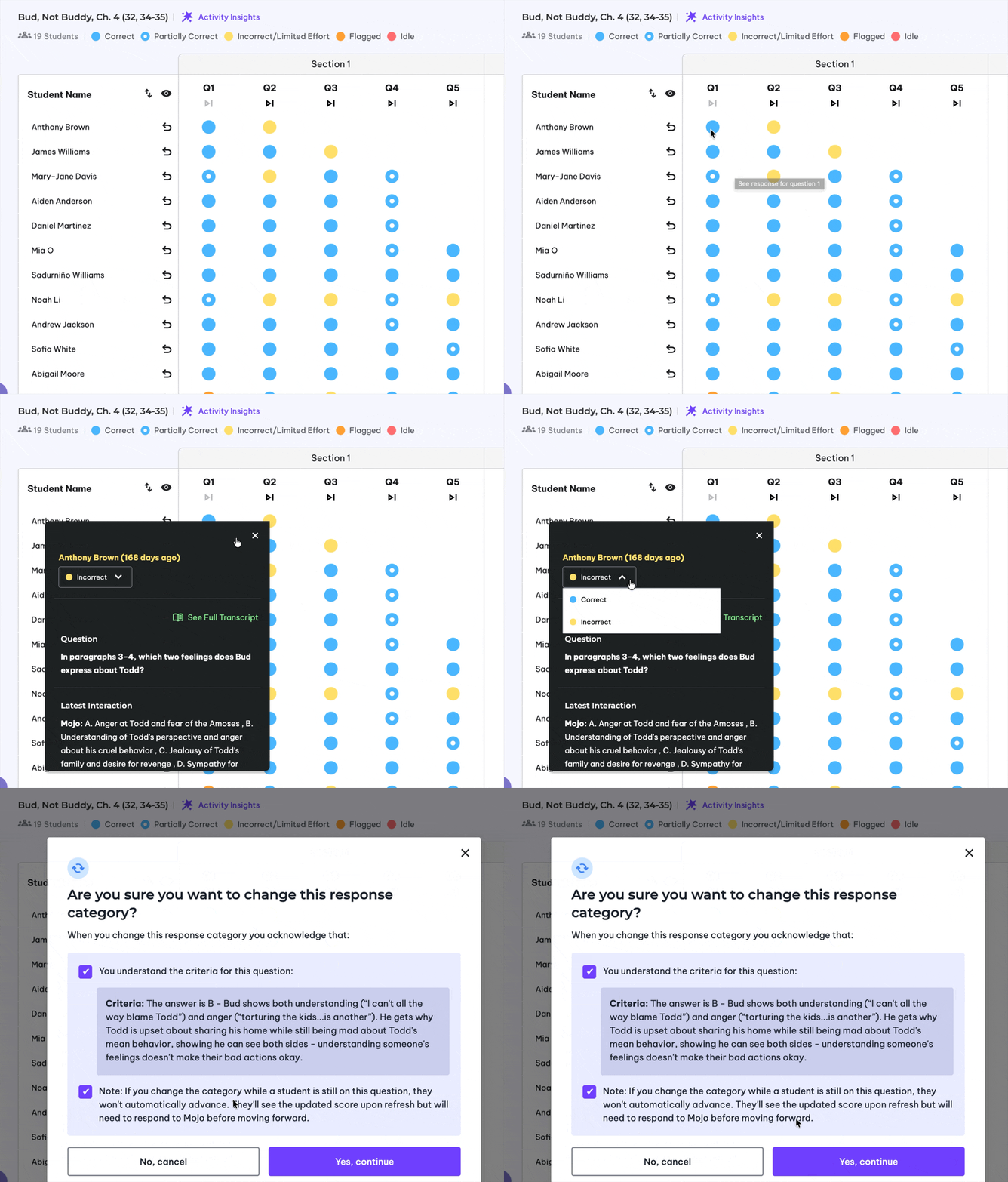
The teacher override feature is now here! 🎉 This tool will allow you to change Mojo’s question bucketing in cases where Mojo is missing nuance when evaluating a student’s answer. While we don’t anticipate you needing to use this tool frequently, it does shift the power back to teachers if they don’t agree with Mojo’s evaluation, and it gives our team helpful data on where we can continue to make prompt refinements.
🆕 What’s new
With Teacher Score/Bucket Override, you can adjust scoring in two places:
This makes it easy to update scoring wherever you’re already reviewing student work.
🔍 Designed for clarity
When you make an override, you’ll see helpful context to support the change, including:
These guardrails keep scoring edits transparent and intentional.
✏️ What students will experience
If a student is still actively working on a question and you override their score:
❓Questions?
Email help@coursemojo.com or click the “Feedback” button on your Mojo sidebar.
Happy New Year, Mojo Teachers! We’re excited to share some updates to the teacher dashboard that we think will make a real difference in how you manage your classroom in real time. These changes were designed based on your valuable feedback, you told us you wanted more flexibility with pacing and easier access to the tools you use most. Here’s what’s new:
🎮 Teacher Controls Update
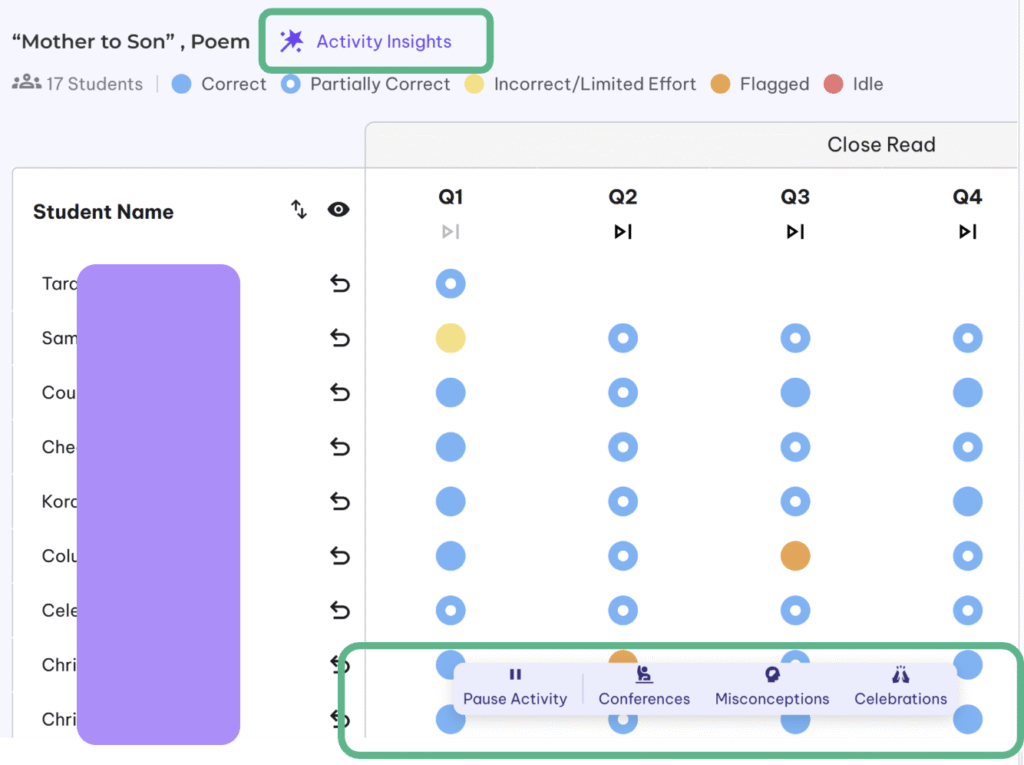
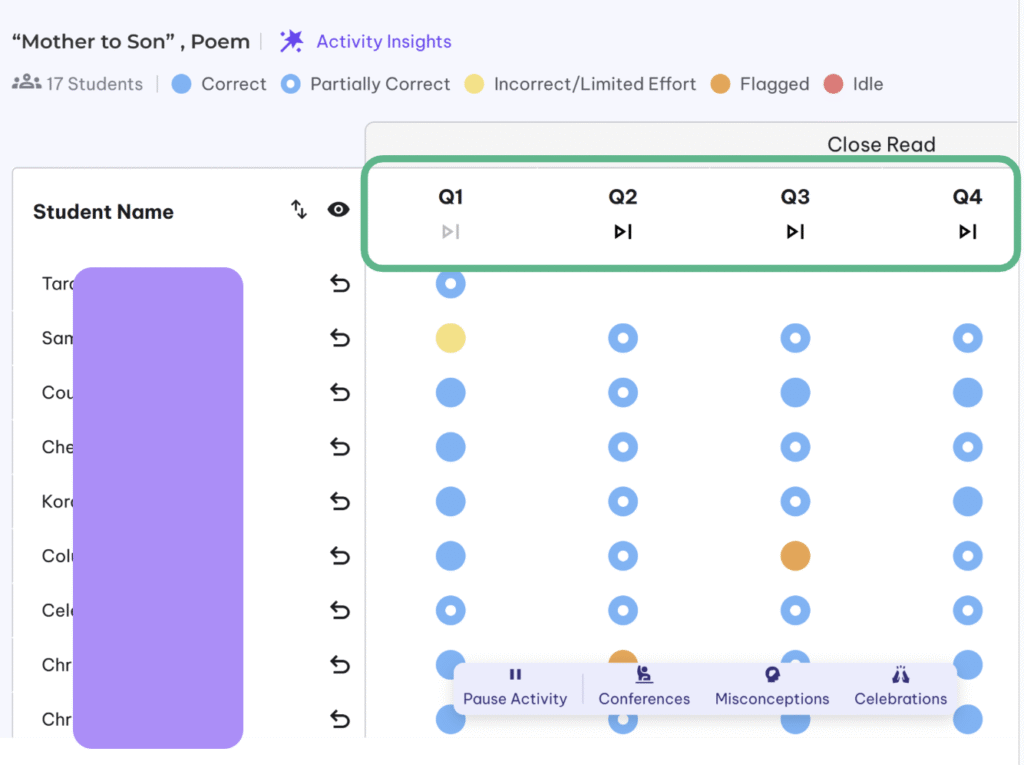
You’ll now see a floating control panel at the bottom of your dashboard while students are working through an activity. This gives you instant access to your most-used actions without leaving the dashboard. Click on Activity Insights to access student scores. From the control panel, you can:
⏩ Question-Level Fast Forward
You now have more flexibility with pacing students through an activity. In the past, you were only able to skip to the target task. Now, you can now fast-forward to any specific question. This is helpful when you want to prioritize certain driving questions for a class period, or when a discussion runs long and you need to adjust on the fly. Look for the skip icons on each question column in your dashboard.
❗Important Reminder: Skipping to a question affects all students in the current activity (except for students who are already on that question or past it) and currently, you are unable to go back. Please click on the question numbers
⏳ Improved Pause Experience
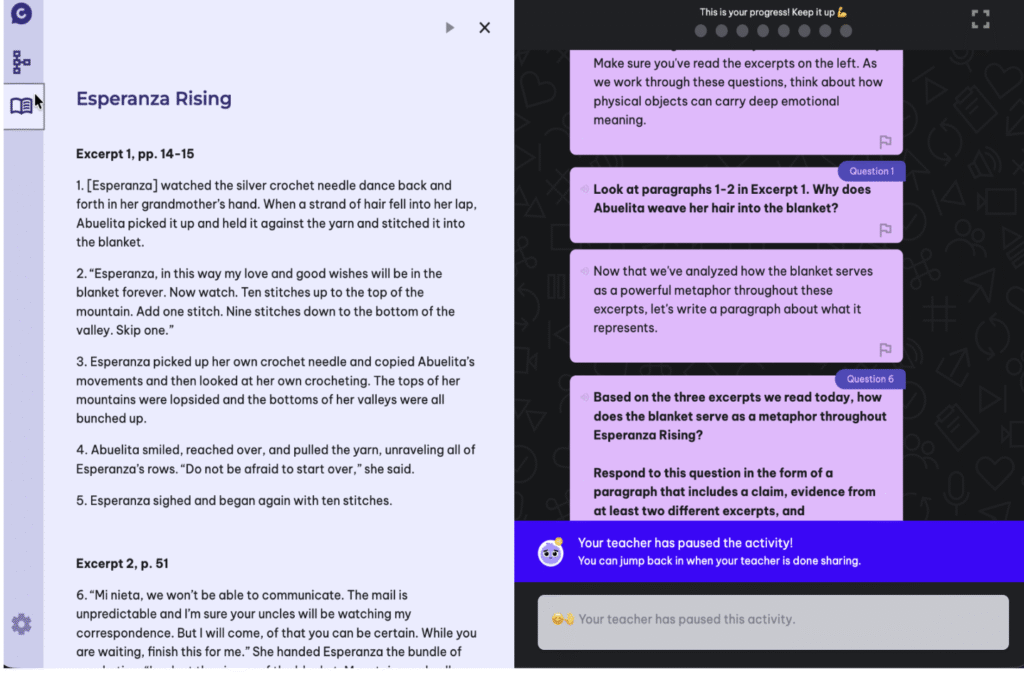
When you pause an activity, students will now see a small notification banner instead of a full-screen message. This means they can still access the reader, scroll through excerpts, and review what they’ve written in the graphic organizer – they just won’t be able to submit new responses until you resume. This makes it easier for students to follow along during whole-class discussions and reference the text as needed.
We can’t wait to see how you use these updates! Please send any questions or feedback to help@coursemojo.com or click the new “Feedback” button on the app sidebar. We’re constantly working to make these tools better for you.
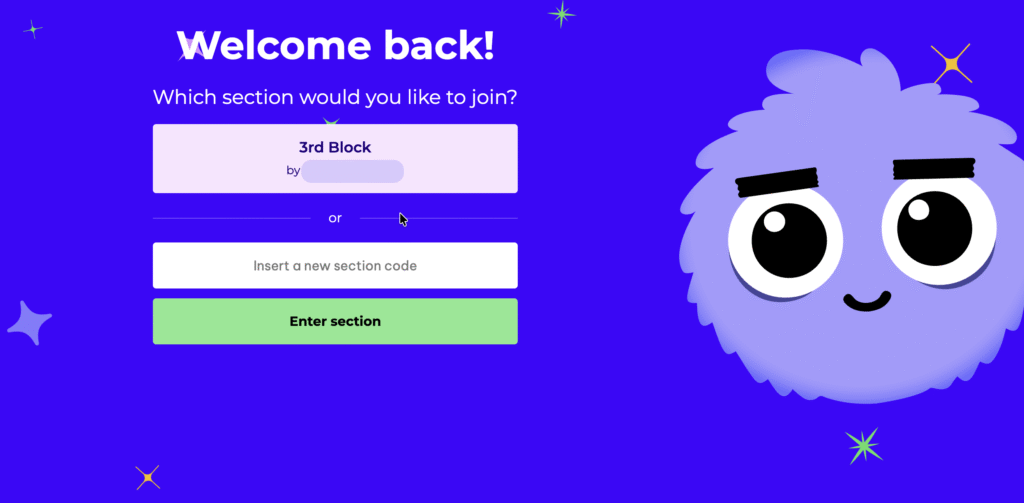
We heard your feedback! Having students re-enter section codes every time slows things down. We’re excited to announce that Mojo now remembers section codes your students have entered in the past. Next time, they’ll just log in and click the section they want to join—no more typing required. The enter code box is still available to them in case a student needs to enter a new code.
We hope this update makes starting activities smoother for your classroom. Once again, thank you for the feedback that makes Mojo better every day!
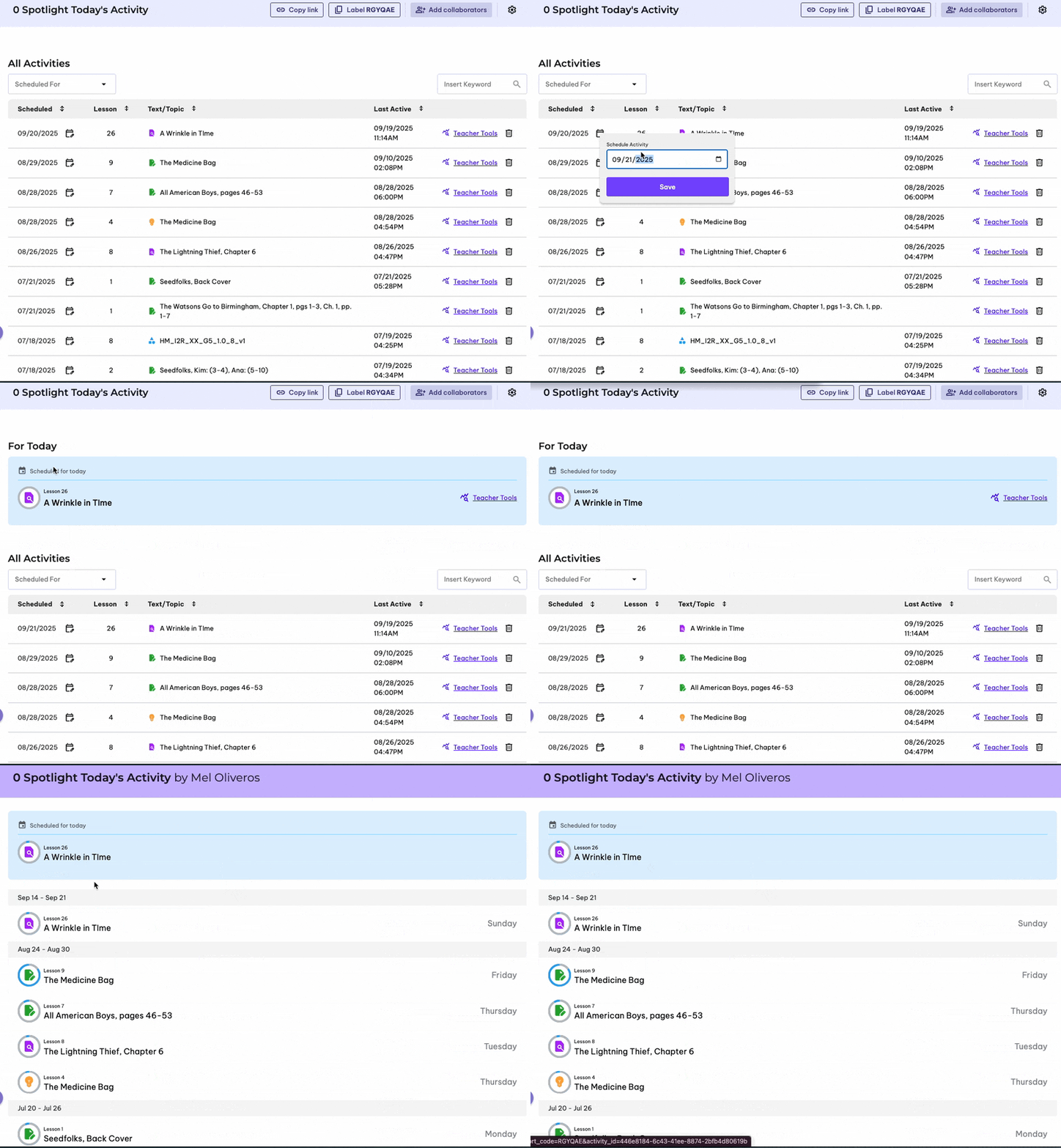
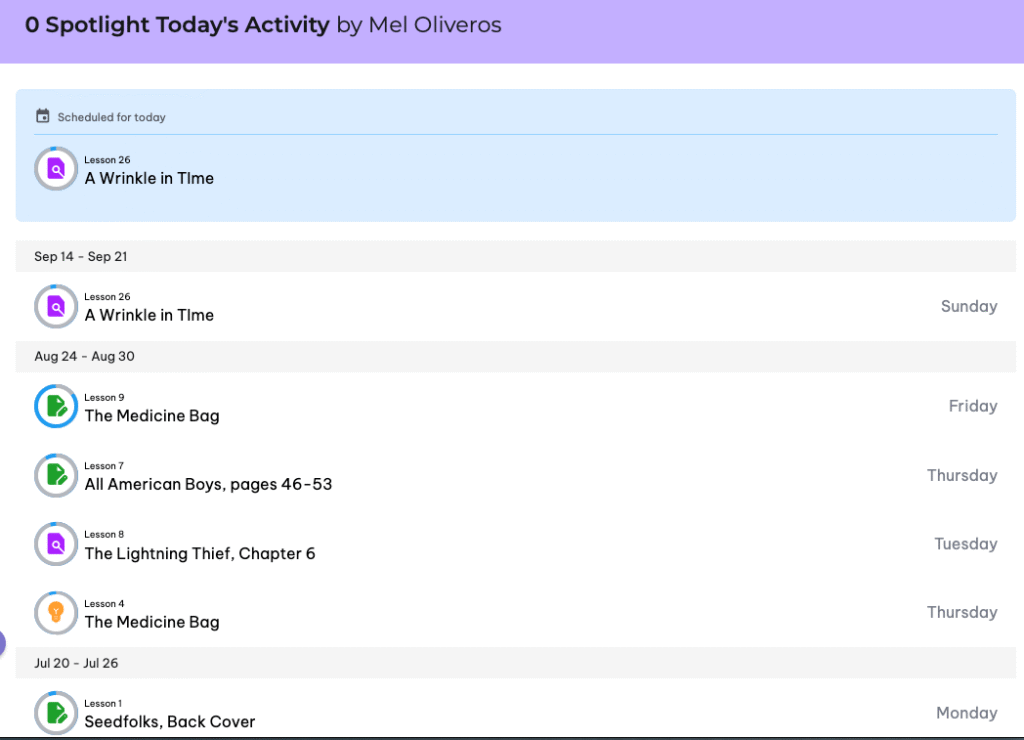
The activity scheduled for today is automatically pinned to the top of each student’s activity list, making it clear what activity the student needs to click and enter! Please make sure to adjust your “scheduled” dates so only the relevant activity is pinned.
We heard from teachers that as the list of scheduled activities get longer, they want students to find today’s activity easier. This new feature ensures that students land on the right activity without hunting around and teachers don’t need to redirect students at the beginning of class.
From your section page, you can easily adjust activity scheduled dates. Any activity that has today’s date will be pinned. The full list of activities will still appear under the activity spotlight.
Student view:
Welcome back, teachers! We’re excited to kick off the school year with updates shaped directly by your feedback. Thank you to the teachers and school leaders who shared their ideas to make Mojo better. Looking forward to another great year supporting you and your students with Coursemojo!
We want to update you on new features that are available now. Quick overview below—details and how-tos follow in the body of this message.
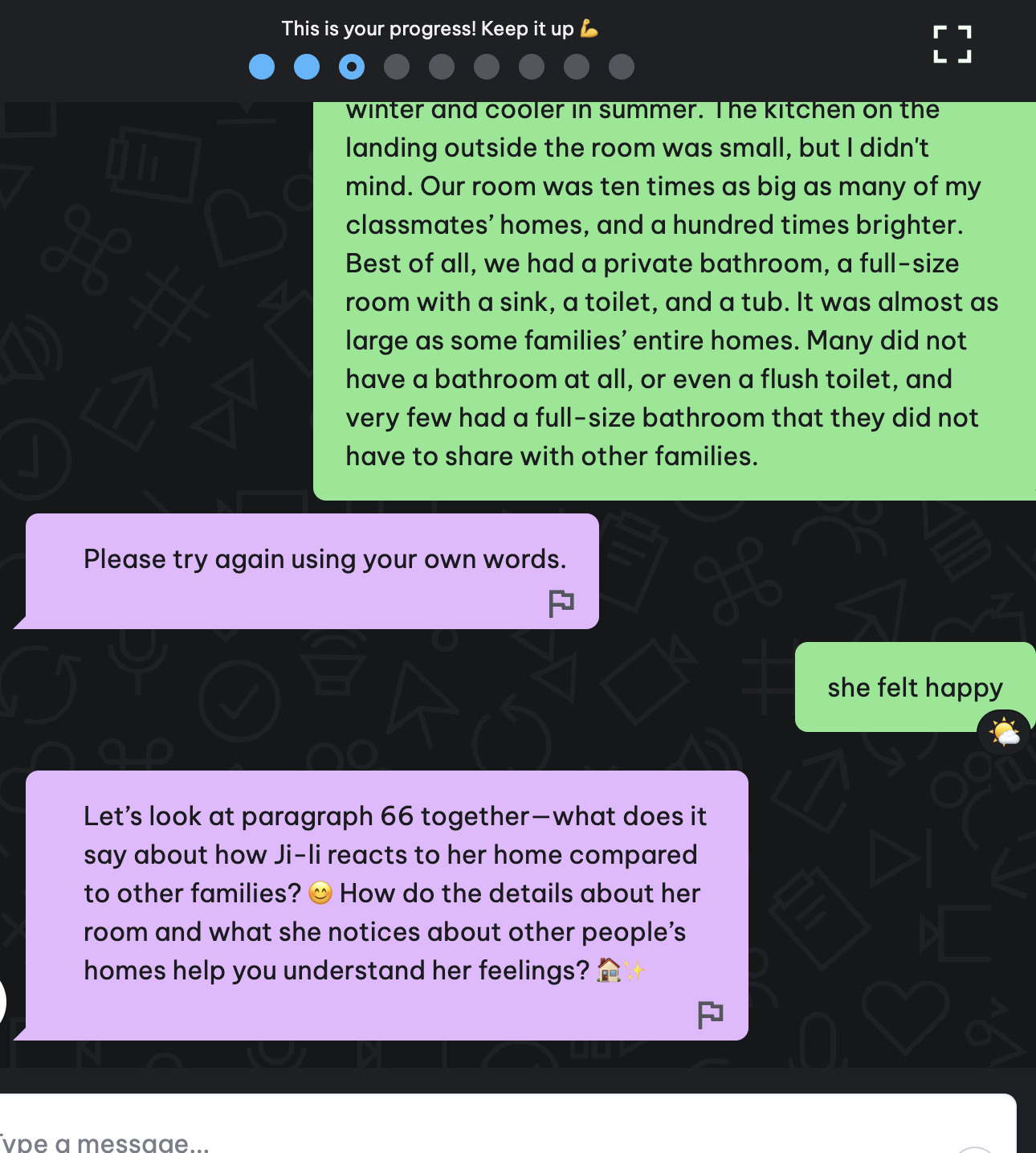
🟠 Copy-Paste Flag: You will now be able to instantly spot pasted text so you can coach citing, paraphrasing, and original work. Anytime a student copy-pastes text without any original content, you will be alerted with an orange dot on the dashboard. Remember, this flag doesn’t always mean that plagiarism has occurred, but it does mean you should review the transcript to assess academic integrity.
See it in action
Student View
Teacher View: Dashboard and Student Transcript
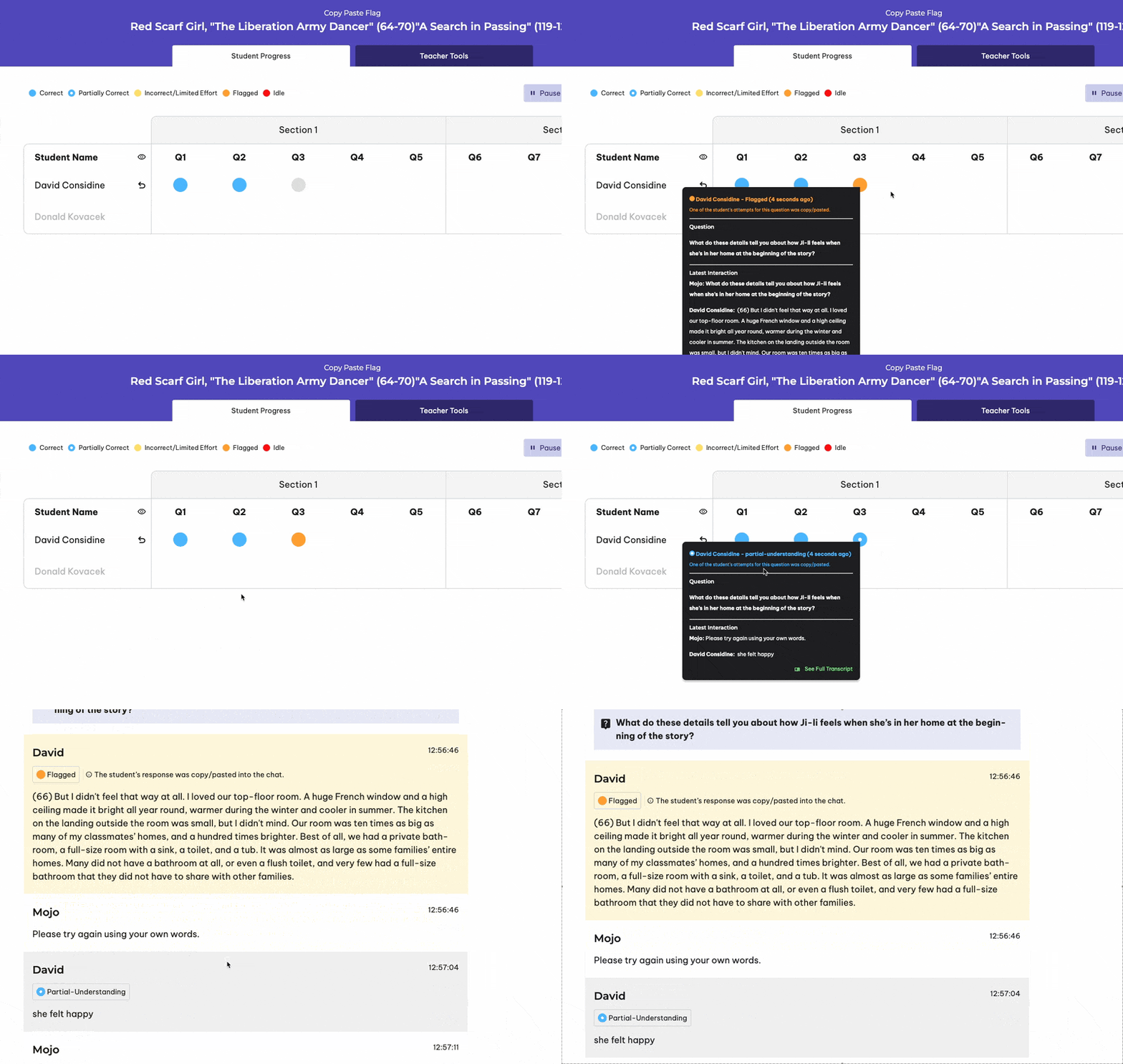
Note about the flag: The flag is not fool-proof — it may not trigger if students modify pasted text (e.g., add characters). Please check individual transcripts and use your judgment when reviewing. You will also still see orange dots for students using inappropriate language. You will be able to differentiate the two flags when you click the dot.
📝 Multi-Step Writing Activities: These new activities are aligned to multi-paragraph essay prompts in your curriculum. These activities will support students with chunking larger writing prompts, selecting aligned evidence, and moving through the process of drafting and revision. You will be able to monitor student progress with the dashboard. In your curriculum overviews, these activities are labeled as “Essays”. Please watch this short video to understand how these activities work before you assign to your students.
💯 Download Scores: You can now download student scores on the daily exit ticket/target task (this now includes multiple choice scores as well). You can download either a PDF or a CSV file to support gradebook imports, deeper analysis, and maintain offline records.
If you have any questions about these new features and the new multi-step writing activities, please email help@coursemojo.com.
We’re excited to introduce the new Mojo Teacher Tools and some visual teacher page improvements. These were designed based on your valuable feedback, to make in-the-moment data access and analysis better and more actionable. You’ll still find all your go-to controls (pause, fast forward, restart, hide names) in the dashboard page, but you will also now have access to the new teacher tools by clicking the next tab.
The new Teacher Tools tab gives you instant access to:
You can also access the Teacher Activity Guide and Student Quick Write Scores here.

We can’t wait to see how you use these tools! Please send any questions or feedback to help@coursemojo.com – we are constantly working to make these tools better for you!
🎥 Check out these 2 short videos to learn more
We’re excited to announce two new dashboard features after hearing your feedback!

We heard that teachers wanted an option to hide student names when displaying their dashboard in front of the class.
You can now do this by clicking on the eye icon next to “Student Name”. Clicking this icon again will unhide student names

We are now also displaying students that have not started an activity yet. They will be displayed in gray in the dashboard. This will hopefully help you identify which students are not in the assigned activity yet.

All names will be grey when the none of your students have entered the activity yet.
Note that the list of names will include all students who has used this particular class code.
👀 See it in action

Your student links and class codes are now easily visible on top of the class page. You can also access class sharing by clicking on “Add Collaborators”. We’ve also added a scheduled activity filter that allows you to easily filter to specific scheduled classes, as well as a “Last Active” column per activity that shows you when an activity was last accessed by your students.

We heard your feedback that moving students forward to the writing section would be really helpful. Many of you are using the “quick write” paragraph at the end of the close read activities as an exit ticket or final class assessment, but not all students have time to get to this final question. To give you more control and flexibility in moving students forward to the writing section, we’ve introduced a Fast Forward button that lets you move students directly to the Quickwrite section of Close Read Activities.
🍏🍎 How it works
 |  |
We’re excited to share that students can now track both their activity progress and results for each activity! This highly requested feature is now live, thanks to your valuable feedback. We believe this update will help students feel more engaged and motivated by giving them clear visibility into their progress and achievements. Keep the great ideas coming—we’re always working to make Mojo even better!
☀️ What Changed
| Old View | New View |
 |  |
👀 See it in action
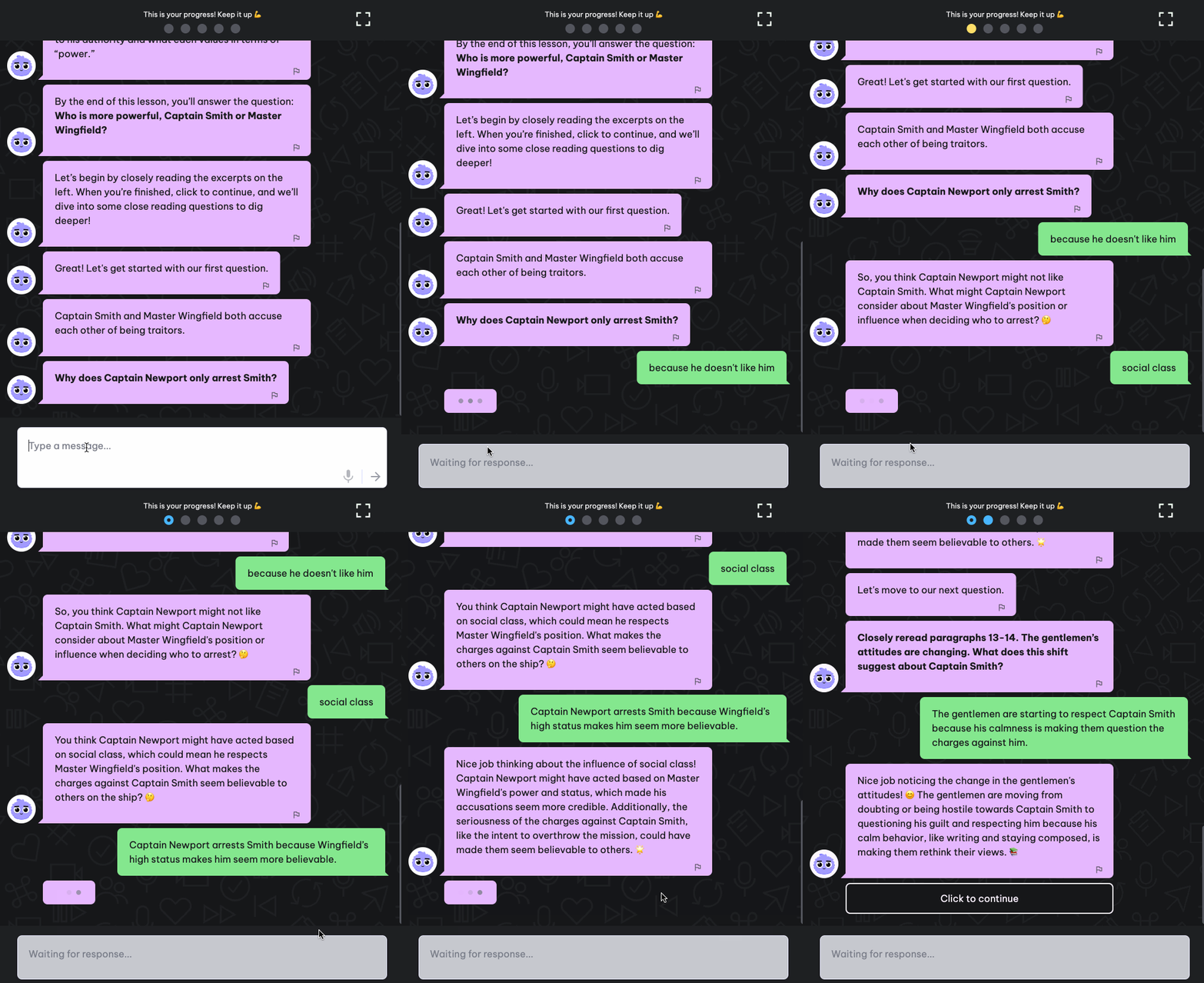
Some of you may have noticed a lot of partial correct blue circles in your dashboards. Mojo was not giving full credit when students got both parts of Close Read questions right in separate attempts. We have updated the teacher dashboards so that:

This will result in more blue (clear understanding) and donuts (partial understanding) on the teacher dashboard. Yellows will now only represent students who have been struggling with a question from the beginning.
Thanks to your feedback for making this possible! These changes will ensure that students get full credit for their answers, and we believe that it will be easier for you to identify students who truly need assistance/extra conferencing.
Please send an email to help@coursemojo.com if you have any questions!
Instead of creating a new activity code/link for every activity, you will now provide students with one code/link that will include all of the activities you have “scheduled” for that class (and you can schedule for all of your classes at once with a simple click). All old activity sessions created prior to Jan 1 can be accessed via “Archive” on the side bar.
🍎Please start by setting up your periods/sections. We pre-created your classes for you based on the information we had, but please feel free to edit/update the names or add any missing periods/sections (use the “+ Add Class” Button). All activities created prior to January 1 will be under “Archive” on your sidebar, so that you can still reference them if you need to.
Please watch this video walking through how you will be assigning activities to each of your periods/sections starting January 1, 2025.
We heard from you that creating a new code for every activity for every class is inefficient, so we are thrilled to announce that on January 1, 2025, we are launching a streamlined class code solution! Instead of creating individual codes per activity, you will be able to create a single code for each of your classes, and schedule activities within that one code (think of it as a playlist of activities for your classes). Again, thank you all for your valuable feedback 🙏 !
🗓️ Mark your calendars for January 1, 2025! We will be sending more information as we get closer to the launch date. Please email help@coursemojo.com if you have any questions!

Updated interface with side menu

Access all dashboards for a class in one page

Schedule activities for all your classes at once

All activities created prior to January 1 will be in the “Archives” section
Teachers are now able to restart an activity for individual students. Note that this will fully restart the activity, and students will be brought back to Question #1. Data in the teacher dashboard and the chat transcript for that student will be cleared as well.
 .
.

Please send an email to help@coursemojo.com if you have any questions or if you experience any issues using this new feature!
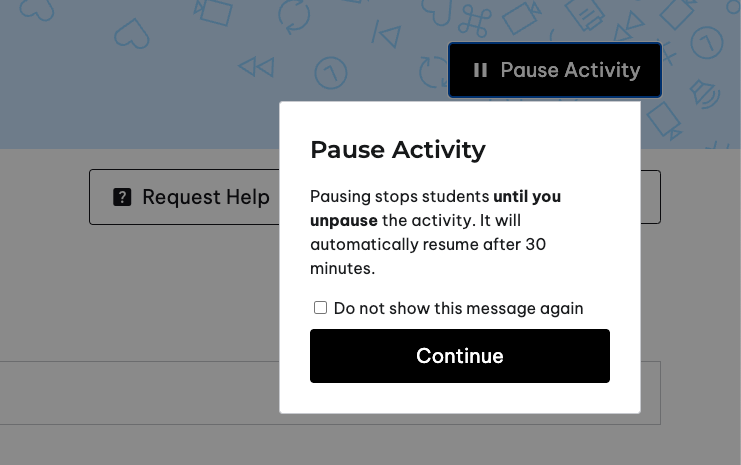
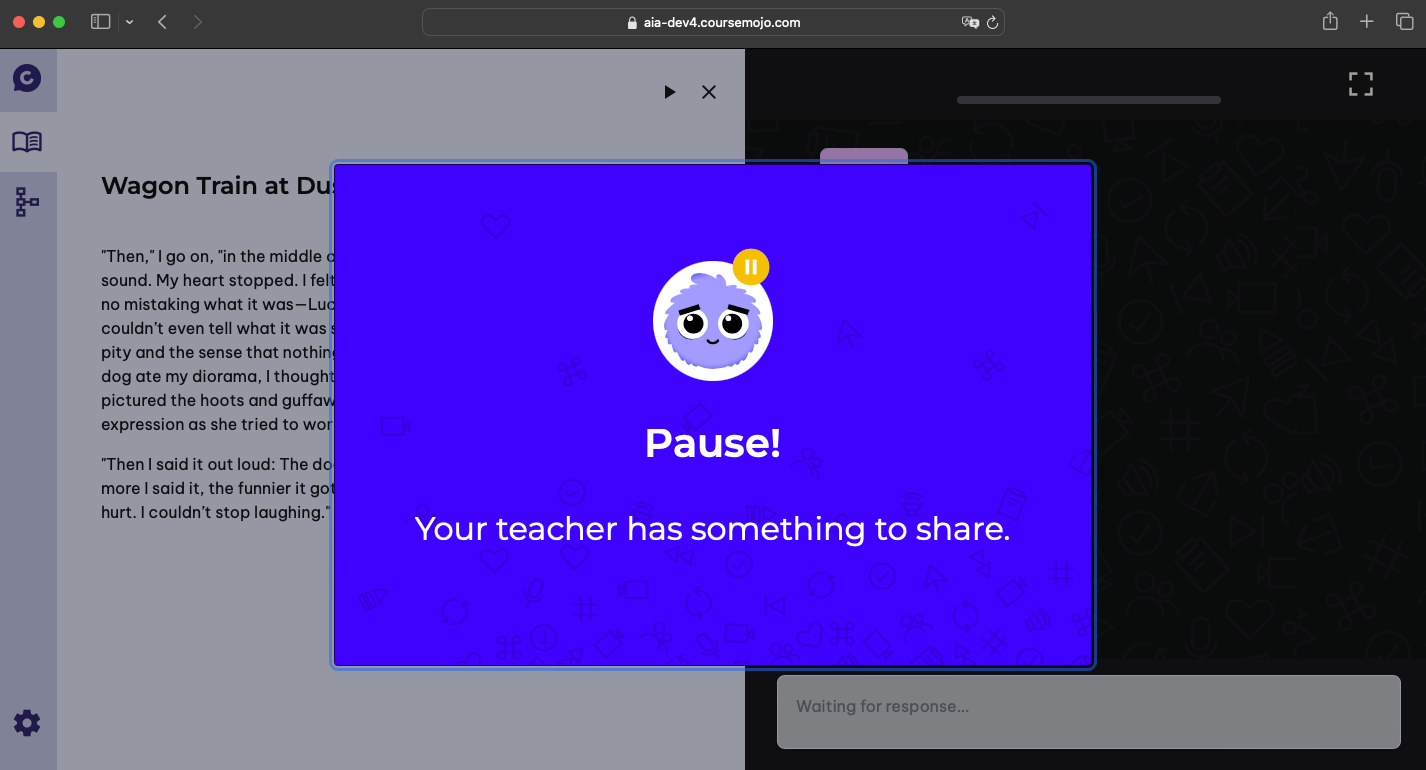
We are excited to announce that teachers can now pause and unpause activities. This is another one of our most requested features – thanks to all our pilot teachers for your feedback! 🙂
Click on the pause button on the upper right corner of your teacher dashboard to pause the activity for all students. Clicking it again will resume the activity. Paused activities will auto-resume after 30 minutes. Please refresh your page if you do not see the button.
🧑🏫 Teacher View


🧑🎓 Student View
⏸️ When to Use the Pause Button?
Notes:
Please send an email to help@coursemojo.com if you have any questions or if you experience any issues using this new feature!
We are excited to announce that students can now request on-demand translations for Mojo chat messages. This is one of our most requested features, so we are thrilled that it’s finally available!
Teachers, please follow the instructions below to enable it for students that require this feature.
Important note about this update: By October 21 Monday, the on-demand translation feature will fully replace the current “spanish permanent translation” tag that teachers can enable in the activity settings page. We believe that this new functionality is a much better solution for students because it lets them control when to ask for translations. If you have students using the permanent translation feature, please make sure that they know how to use the new on-demand translation feature by 10/21.
If your district has specific guidelines about permanent translation, only share this functionality with students who need it.

Some notes:
Please send an email to help@coursemojo.com if you have any questions or if you experience any issues using this new feature!
Teachers, you can now see the criteria for each question (for “correct” or “clear understanding”) when you click on the question headers or each of the student bubbles.
Note: Scroll to the bottom of each student bubble to find the “See Full Transcript” button.
Please email help@coursemojo.com if you have any questions!

