
Happy New Year, Mojo Teachers! We’re excited to share some updates to the teacher dashboard that we think will make a real difference in how you manage your classroom in real time. These changes were designed based on your valuable feedback, you told us you wanted more flexibility with pacing and easier access to the tools you use most. Here’s what’s new:
🎮 Teacher Controls Update
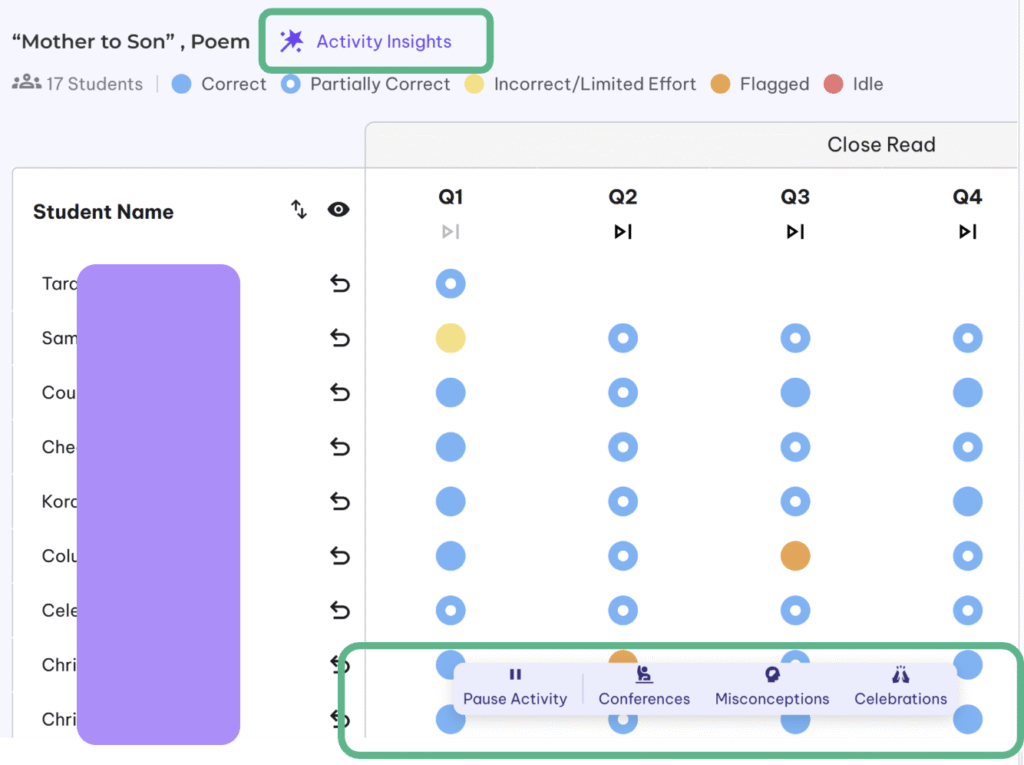
You’ll now see a floating control panel at the bottom of your dashboard while students are working through an activity. This gives you instant access to your most-used actions without leaving the dashboard. Click on Activity Insights to access student scores. From the control panel, you can:
- Celebrate exemplar student work with Celebrations
- Pause the activity for the whole class
- Open Conferences to see students who may need support based on limited effort or confusion
- Flag Misconceptions you’re noticing across responses
⏩ Question-Level Fast Forward
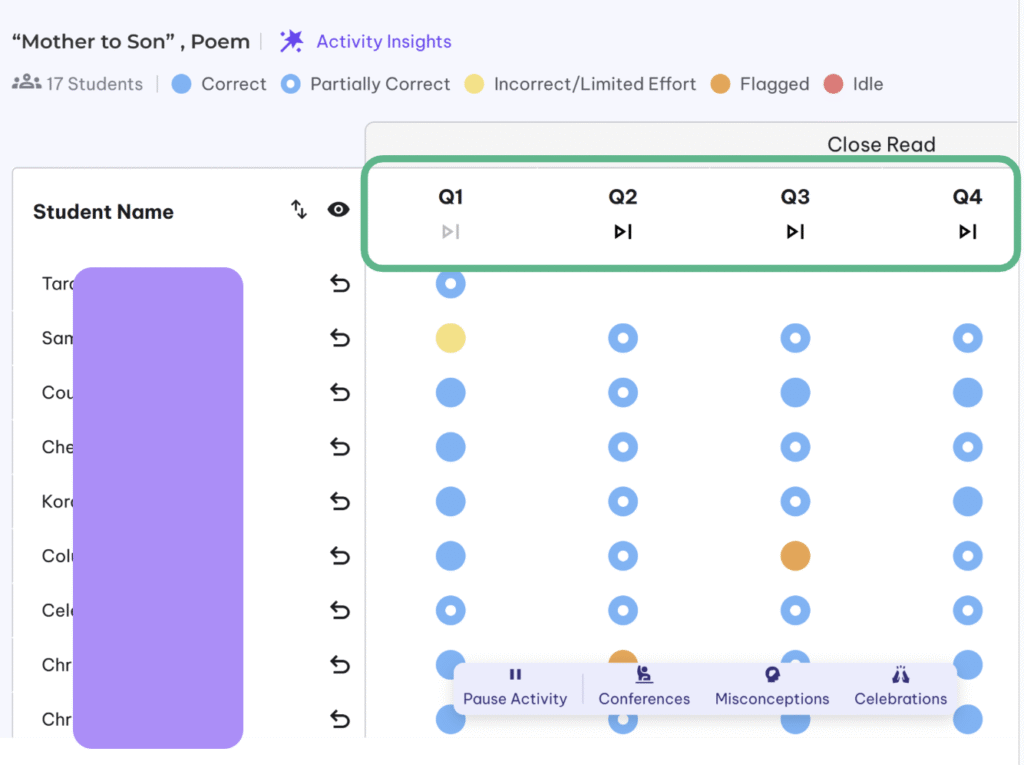
You now have more flexibility with pacing students through an activity. In the past, you were only able to skip to the target task. Now, you can now fast-forward to any specific question. This is helpful when you want to prioritize certain driving questions for a class period, or when a discussion runs long and you need to adjust on the fly. Look for the skip icons on each question column in your dashboard.
❗Important Reminder: Skipping to a question affects all students in the current activity (except for students who are already on that question or past it) and currently, you are unable to go back. Please click on the question numbers
⏳ Improved Pause Experience
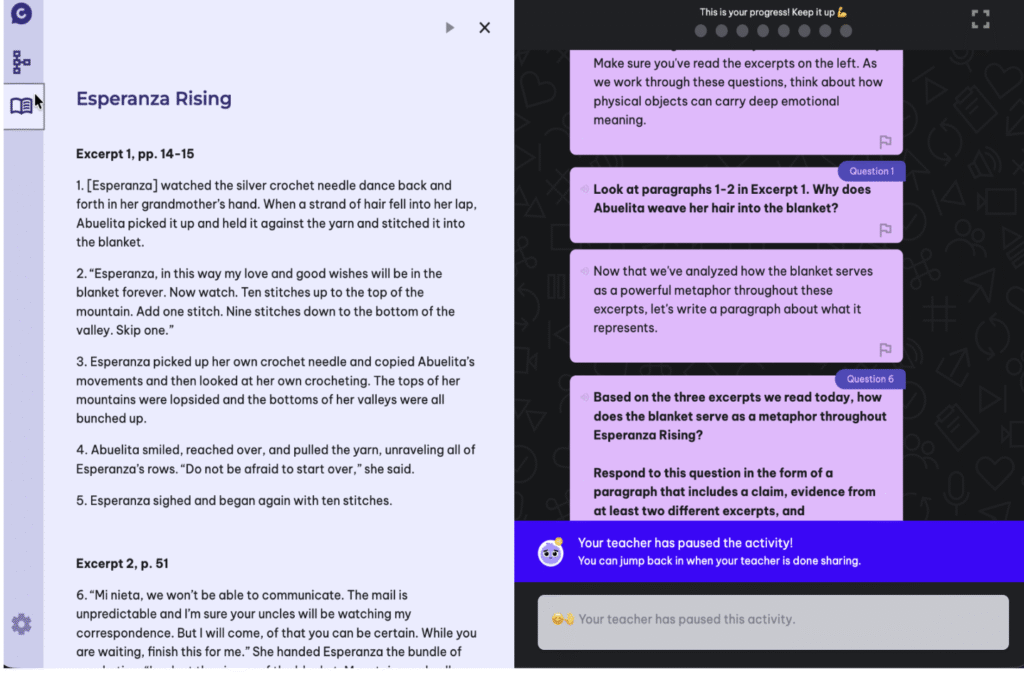
When you pause an activity, students will now see a small notification banner instead of a full-screen message. This means they can still access the reader, scroll through excerpts, and review what they’ve written in the graphic organizer – they just won’t be able to submit new responses until you resume. This makes it easier for students to follow along during whole-class discussions and reference the text as needed.
We can’t wait to see how you use these updates! Please send any questions or feedback to [email protected] or click the new “Feedback” button on the app sidebar. We’re constantly working to make these tools better for you.